
Shopify· US · UK · AU · CA · IN

Shopify Virtual TryOn: Add AI TryOn to Your Store (2026)

Fewer than 1% of Shopify clothing stores offer virtual TryOn — yet it's the single most effective tool for reducing returns and increasing purchase confidence. This guide shows you exactly how to add AI virtual TryOn to your Shopify store in 10 minutes, with no code and no developer.
T

TryOnCloud Editorial Team

E-commerce & Fashion Tech Experts

March 27, 2026

7 min read

Shopify powers over 4.6 million online stores worldwide — and the majority of fashion and apparel merchants on the platform are losing 25–40% of revenue to returns. The root cause is simple: customers cannot try clothing on before they buy. Virtual TryOn solves this directly, and in 2026, adding it to your Shopify store is faster and cheaper than ever.

<1%

of Shopify fashion stores offer virtual TryOn

Despite two-thirds of online shoppers wanting to try clothes on virtually before buying, fewer than 1 in 100 Shopify clothing stores currently offers this feature — a major competitive opportunity.

Why Shopify Clothing Stores Need Virtual TryOn

Shopify's own research found that 67% of consumers would use a virtual TryOn feature if available on a fashion store. Yet the technology adoption rate remains extremely low — primarily because merchants assume it requires expensive development work or enterprise-level infrastructure. That assumption is no longer accurate. Modern plug-and-play solutions like TryOnCloud make virtual TryOn accessible to any Shopify merchant, regardless of technical skill or budget.

The business case is straightforward. The average Shopify clothing store has a return rate of 28–35%. Each return costs $17–31 to process. A 30% reduction in returns — consistently delivered by AI virtual TryOn — translates directly to thousands of dollars in monthly savings for stores doing meaningful volume. Beyond returns, merchants report 2–3× higher conversion rates for customers who use the TryOn feature, and a 12–18% increase in average order value.
The Shopify-Specific Advantage

Shopify's Theme Editor and app ecosystem make adding virtual TryOn particularly straightforward compared to custom-built stores or WooCommerce. The TryOnCloud Shopify app integrates natively with the Theme Editor, meaning you can place and configure the TryOn Button block exactly where you want it on your product page — with full drag-and-drop control and live preview — without touching a single line of Liquid or JavaScript.

How Virtual TryOn Works on Shopify

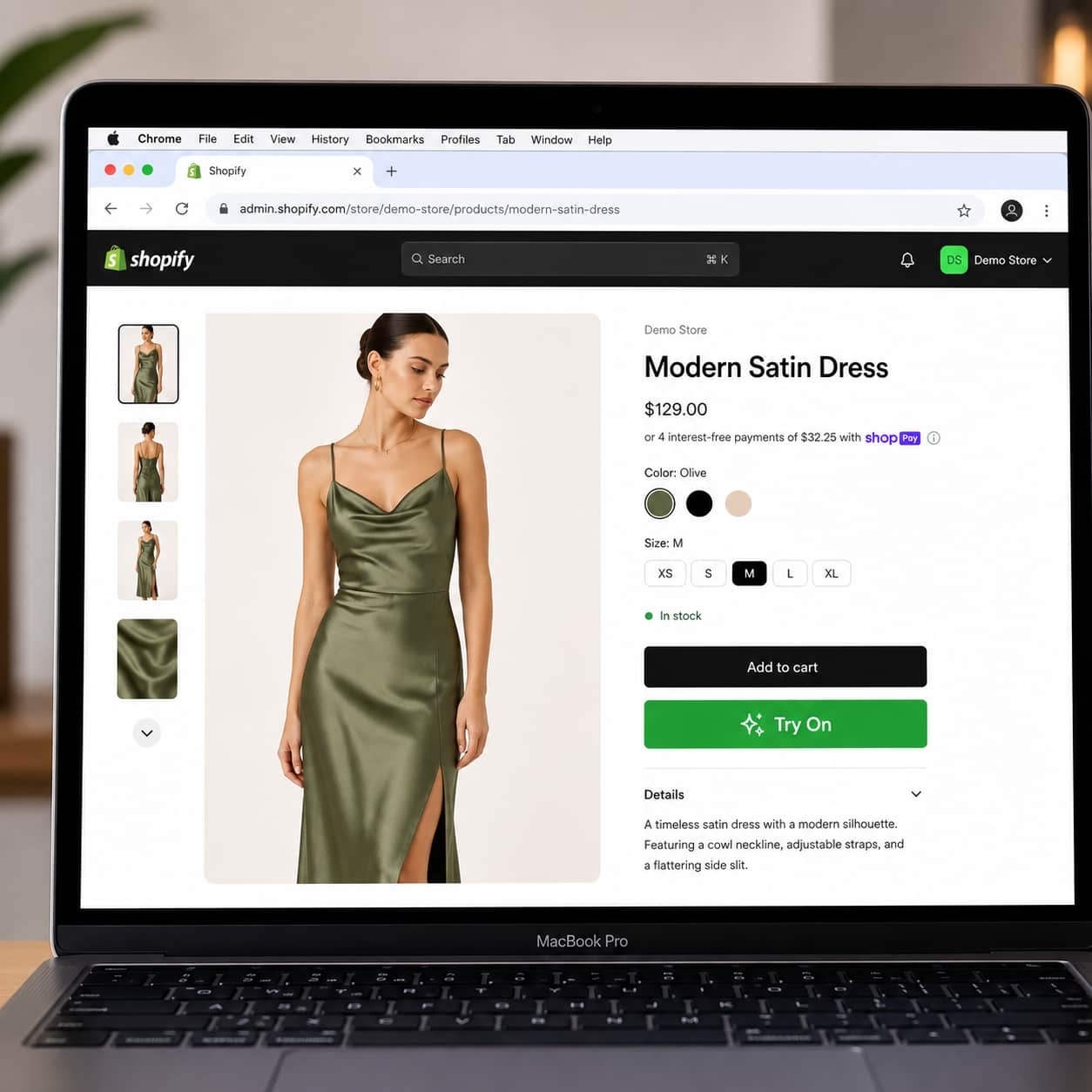
When a customer visits a product page on your Shopify store with TryOnCloud installed, they see a “Try On” button alongside the standard Add to Cart button. The experience is entirely within your store — no redirects, no popups to external domains, no app installs on the customer's device.

  1. Customer clicks “Try On” on your product page. A lightweight overlay opens within your store.
  2. Customer uploads a photo — a full-body or upper-body selfie. The image is transmitted securely to TryOnCloud's servers and is never stored beyond 30 days.
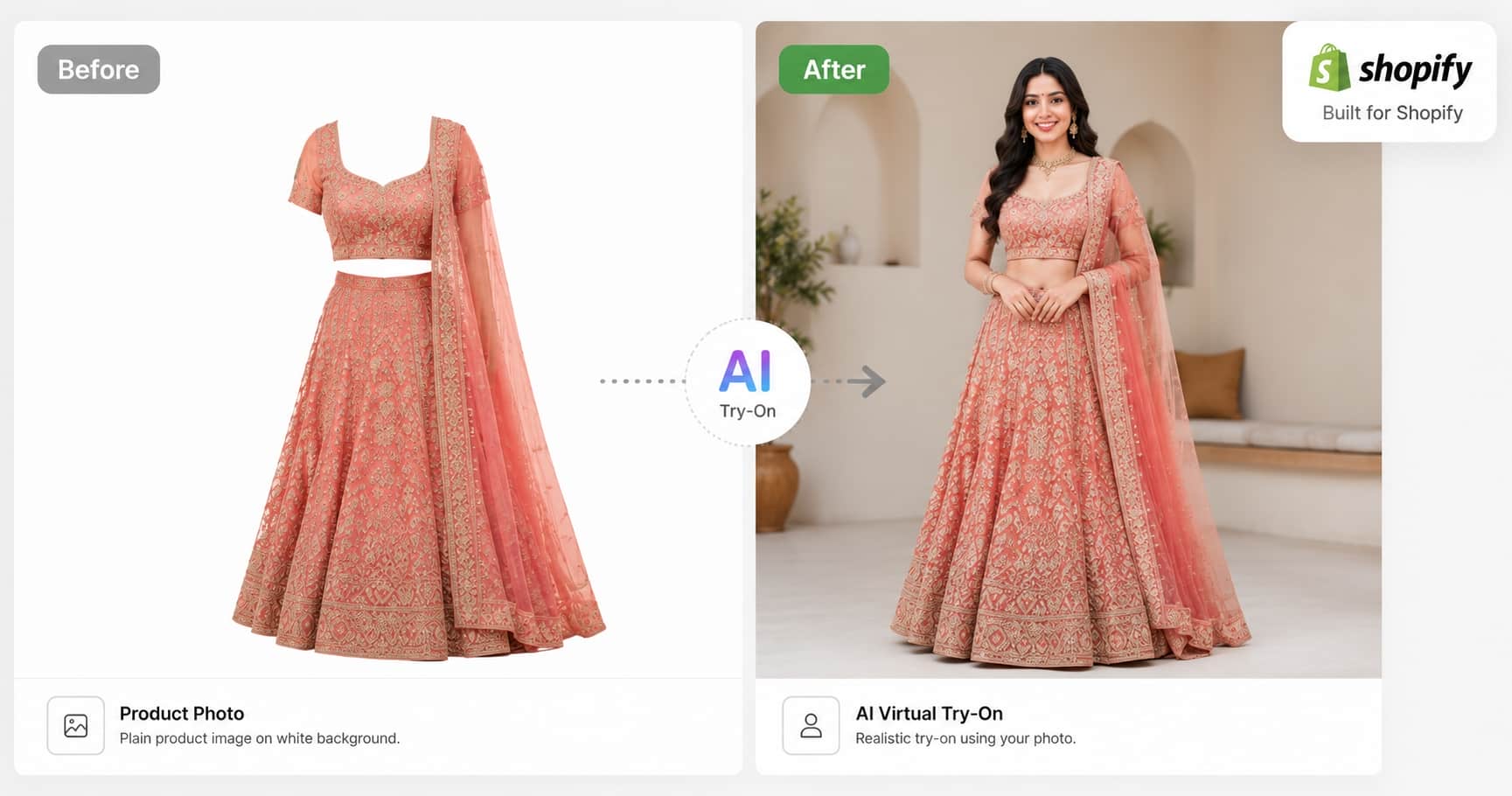
  3. AI generates the TryOn using advanced generative image models. The AI identifies the customer's body pose and proportions, segments the garment from your product image, and composites a photorealistic result showing the customer wearing the item.
  4. Result appears in 15–20 seconds. The customer sees themselves wearing the garment — with accurate drape, fit, and lighting. They can download the image, share it, or proceed to add to cart with significantly higher confidence.
💡 TryOnCloud is compatible with all Shopify themes — Dawn, Debut, Refresh, Brooklyn, Minimal, and any custom theme. There is no theme-specific setup required.

Step-by-Step: Adding Virtual TryOn to Your Shopify Store

The complete setup takes under 10 minutes. Here is exactly what to do:

Step 1: Create Your TryOnCloud Account

Go to tryoncloud.com/signup and create a free account. No credit card is required. Your account automatically starts on a 7-day free trial with 10 TryOns — no credit card required. This gives you enough to test the feature with real customers and measure its impact before committing to a paid plan.

Step 2: Install the Shopify App

From your TryOnCloud dashboard, navigate to the Shopify integration section and click “Install Shopify App.” You will be redirected to the Shopify App Store listing. Click “Add app,” select the Shopify store you want to connect, and grant the requested permissions. The app requires access to your storefront to inject the TryOn Button block and to read product images — it does not have access to customer data or payment information.

Step 3: Generate Your API Key

After installation, return to your TryOnCloud dashboard and copy your API key. Paste this key into the TryOnCloud app settings within your Shopify admin (Apps → TryOnCloud → Settings). This links your Shopify store to your TryOnCloud account and activates your monthly TryOn quota.

Step 4: Add the Button in Shopify Theme Editor

From your Shopify admin, go to Online Store → Themes → Customize. Navigate to a product page template. In the left-hand block list, find the TryOnCloud section and drag the TryOn Button block to your preferred position — typically just below or above the Add to Cart button. Click Save. Your virtual TryOn is now live.

Full Setup Checklist

  • Create free TryOnCloud account at /signup
  • Install TryOnCloud from the Shopify App Store
  • Copy API key from TryOnCloud dashboard
  • Paste API key in Shopify: Apps → TryOnCloud → Settings
  • Open Shopify Theme Editor → product page template
  • Drag TryOn Button block to desired position → Save
  • Test on a product page as a customer
  • Go live — all product pages now have virtual TryOn

Placing the TryOn Button in Shopify Theme Editor

The position of the TryOn Button on your product page matters for conversion. Testing across TryOnCloud merchants shows that placing the button directly below the Add to Cart button generates the highest click-through rates — typically 18–25% of product page visitors will click “Try On” when the button is in this position. Placing it above the Add to Cart button can marginally reduce Add to Cart clicks from customers who haven't tried on yet, so below is the recommended default.

Button PositionTryOn CTRNotes
Below Add to Cart (recommended)18–25%Best for conversion; doesn't interrupt purchase flow
Above Add to Cart22–28%Higher CTR but may delay add-to-cart
Below product description10–15%Lower visibility; still effective
Image gallery area8–12%Good for stores with minimal product info

You can also customise the button colour to match your theme, the button text (e.g. “Try It On”, “See It On You”, “Virtual TryOn”), and whether to show a small camera icon alongside the text. All of these settings are available in the Theme Editor block settings panel on the right-hand side — no code editing required.

Results: What Shopify Merchants See After Adding Virtual TryOn

Across TryOnCloud's Shopify merchant base, the data is consistent: stores that achieve 15%+ TryOn adoption (meaning at least 15% of product page visitors use the TryOn feature) see measurable return rate reductions within the first 30 days of activation. Full impact is typically visible within 60 days.

MetricBefore TryOnAfter TryOn (60 days)Change
Return rate32%22%−31%
Conversion rate (TryOn users)2.1%5.4%+157%
Average order value$68$79+16%
Customer satisfaction score3.8/54.4/5+16%

The ROI calculation is compelling even at small scale. A Shopify store doing 500 orders/month at a 32% return rate has 160 returns/month. At $20 average processing cost, that's $3,200/month in return costs. A 30% reduction saves 48 returns/month × $20 = $960/month = $11,520/year — from a subscription that costs a fraction of that.

157%

higher conversion rate for TryOn users vs non-users

Shopify customers who use the virtual TryOn feature convert at over 2.5× the rate of those who browse without trying on — the single most powerful conversion tool on a product page.

Choosing the Right Virtual TryOn App for Shopify

When evaluating Shopify virtual TryOn apps, the five factors that matter most are: AI output quality, setup time, pricing transparency, platform reliability, and customer data privacy. Low-quality TryOn results — blurry, unrealistic composites — can actually harm conversion by setting negative expectations. Quality matters.

  • AI quality: TryOnCloud uses advanced generative AI models built for enterprise-grade accuracy. Results are photorealistic, accurate to body proportions, and rendered in 15–20 seconds.
  • Setup time: Under 10 minutes with no coding required. Native Theme Editor integration means no custom Liquid code or JavaScript injection.
  • Pricing: 7-day free trial (10 TryOns, no credit card) to validate ROI before paying. Paid plans from $19/month and scale predictably with usage volume.
  • Privacy: Customer photos are processed on Google Cloud infrastructure and automatically deleted after 30 days. No facial recognition, no selling of customer data.
  • Analytics: The TryOnCloud dashboard shows TryOn counts per product, TryOn-to-purchase conversion rate, and return rate trends — so you can measure impact directly and optimise which products to feature.

Frequently Asked Questions

Yes. TryOnCloud is a dedicated Shopify virtual TryOn app that installs directly from your Shopify admin. Once installed, you add the TryOn Button block to your product page template via Shopify's Theme Editor — no coding required. The app works on all Shopify themes and plans, including Basic.

Add Virtual TryOn to Your Shopify Store

10 minutes. No code. 7-day free trial — no credit card required. Join Shopify merchants already cutting returns by 30%.