
Explainer
How Does a Virtual Try-On Kiosk Work?
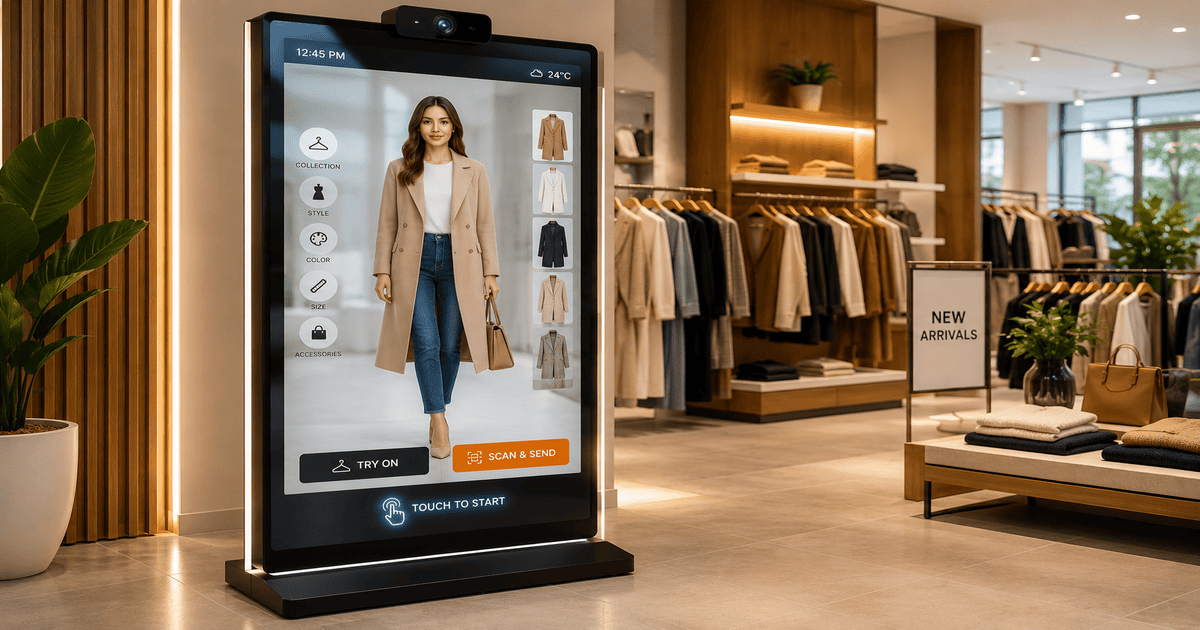
A virtual try-on kiosk works in four steps: the shopper taps a product, takes or scans a photo, the AI renders a realistic image of them wearing it in seconds, and they download it to their phone. That is the experience from the shopper's side. Below, we break down each step, then look at what happens behind the screen, why it is fast, and why it is private.
The short answer
The shopper taps an item, adds a photo of themselves, and the kiosk uses AI to produce a realistic image of them wearing it in about seven seconds. They scan a code to keep it. No fitting room, no app.
The Four Steps in Detail
- 1
The shopper taps a product
On the kiosk screen they see your store's live catalog, grouped into collections, with instant search. They tap the item they are curious about. No codes, no typing — the simplest possible start, so anyone can do it without instruction.
- 2
They add a photo
Two options. They can stand in front of the kiosk and let the built-in camera take a full-body shot, with on-screen guidance to frame it well. Or, if they would rather use a photo they already have, they scan a QR code that opens a page on their own phone where they upload one. Either way, the kiosk now has a real photo of the shopper.
- 3
The AI renders the look
The engine combines the shopper's photo with the product image and generates a realistic picture of them wearing the item. This takes about five to ten seconds, and a live progress animation keeps the shopper watching rather than wandering off. The finished image appears full-screen on the kiosk.
- 4
They download it to their phone
To keep the result, the shopper scans a QR code on the screen. It opens a private link on their phone where they can download or share the image. The link is short-lived and expires automatically — the result is never stored on the kiosk itself.
What Happens Behind the Screen
From the shopper's point of view it is one smooth motion, but a few things happen in the background to make the result believable. When the photo is captured, the kiosk first cleans it up — brightening a dim in-store shot and sharpening detail so the AI has a clear image to work from. This matters more than people expect: a clean input produces a far more accurate try-on than a dark or blurry one. The cleaned photo and the product image are then sent to the AI engine, which generates the final picture and sends it straight back to the screen.
The product images themselves come from your store. When you pair the kiosk, your catalog syncs from Shopify or WooCommerce, so the items on the kiosk are the items on your rails. There is no manual uploading of product photos — the kiosk always reflects what you actually sell.
Why It Is So Fast
Speed is not a nice-to-have for an in-store kiosk; it is the whole game. A shopper at a rail will not wait a minute for a result — they will drift away. So the kiosk is tuned to return a try-on in seconds, and the live progress animation does the psychological work of making even those seconds feel productive. The image cleanup step adds almost no time but improves the result enough to be worth it. The end effect is that the shopper stays put, sees the look, and makes a decision while they are still standing in front of the item.
Why It Is Private
Three things make the kiosk private by design. The shopper's photo is deleted the moment the try-on is generated. The result is held only briefly so it can be downloaded, then it expires. And nothing is saved to the machine or tied to the shopper's identity. A shopper can see, plainly, that the screen does not keep anything — which is exactly why they are comfortable using it.
Watch It Work in a Live Demo
See the full four-step flow on a real catalog in 30 minutes.
Common Questions
How long does one try-on take on the kiosk?+
From the moment the shopper's photo is captured to the finished image on screen is about five to ten seconds. A live progress animation runs the whole time so the shopper knows it is working and stays engaged.
Does the kiosk use the shopper's real photo?+
Yes. The realism comes from using an actual photo of the shopper — taken on the kiosk camera or uploaded from their phone — rather than a generic model. That is why the result looks like them and not a mannequin.
Where does the rendered image go?+
It appears full-screen on the kiosk first. To keep it, the shopper scans a QR code that opens a private link on their own phone where they can download or share it. The link expires shortly after, and nothing is stored on the machine.
What happens to the uploaded photo afterwards?+
It is used to generate the result and then deleted immediately. It is never stored long-term, never linked to the shopper's identity, and never shared. The kiosk is private by design.
Can a shopper try several items in a row?+
Yes. Because each try-on takes seconds, a shopper can preview one item after another without stepping away. This is a large part of why a kiosk lifts engagement compared with a fitting room.